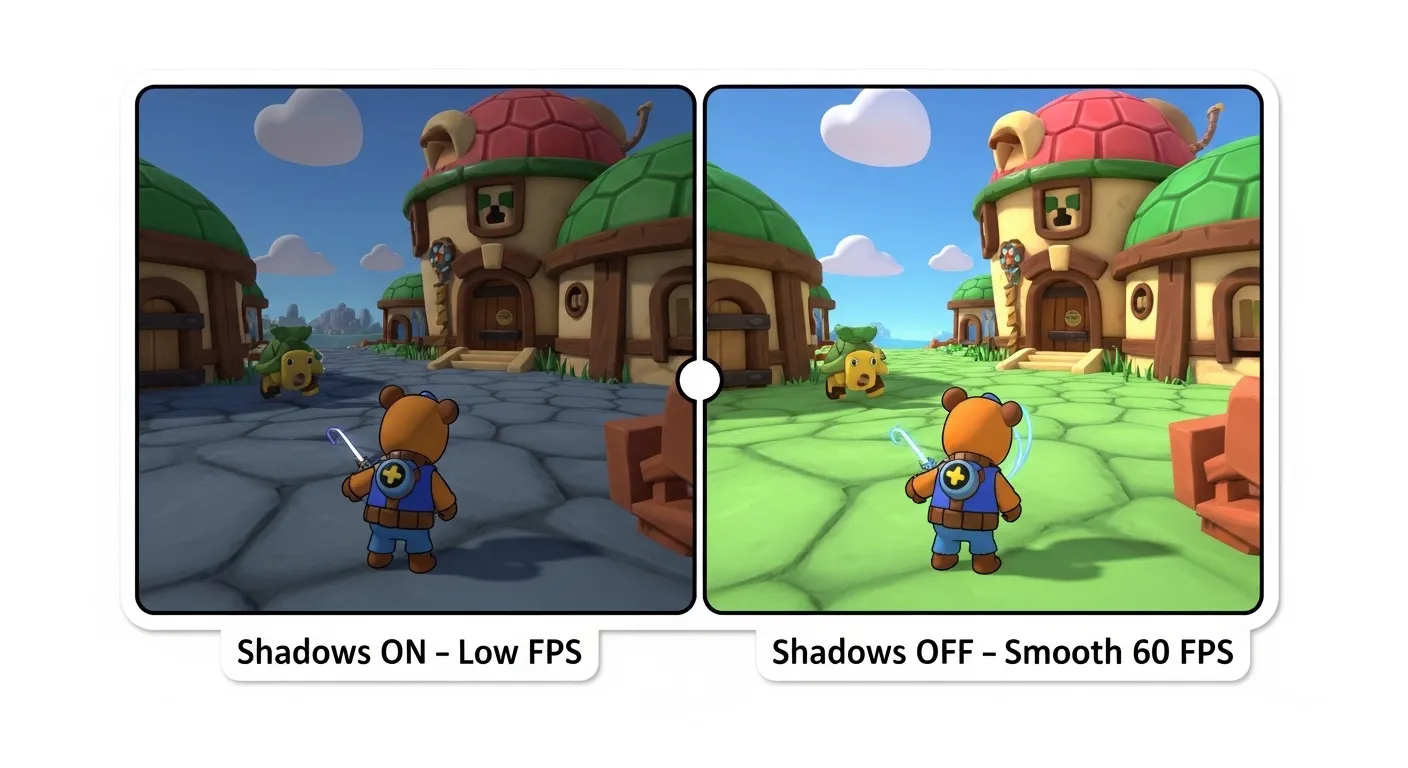
You can fix lag in Super Bear Adventure on weaker phones by lowering resolution, turning off shadows, motion blur, and edge smoothing, closing background apps, and capping the frame rate so the device stays cooler.
Super Bear Adventure is a bright 3D adventure, and later worlds like The Hive and Giant House are full of effects. On strong phones this looks great; on cheaper devices it often turns into stutter and hot batteries.
This guide keeps things simple. First we’ll fix in‑game graphics (your best settings), then clean up your phone and, if needed, point you to lighter builds in the old versions archive. Get the latest Mod APK if you want the tuned build. Related: Multiplayer, Common errors, Redeem codes, Version changelogs.
A Super Bear Adventure lag fix is a set of simple graphics and phone tweaks—like lowering resolution, turning off heavy effects, and closing other apps—that keeps the game smooth on budget Android phones in the 2026 v13.0.4 build. These are also the best everyday settings for most players.
Key takeaways
- Lower graphics first: Set resolution to Medium, turn shadows off, and disable motion blur and edge smoothing for an immediate boost.
- Free up your phone: Close background apps, enable Game Mode, and avoid playing while the device is burning hot.
- Use older builds when needed: If your hardware is too weak, a lighter archive version can be the only stable fix.
- PC is an option: For maximum control, play through a tuned PC emulator instead of a weak phone.
By testing on several budget phones, I found a set of settings that keep play smooth without making the game look ugly.
What phone do I need for smooth Super Bear Adventure?
Before tweaking settings, check these baseline needs for the latest 2026 build:
| Part | Minimum (playable) | Recommended (smooth) |
|---|---|---|
| Memory | 2 GB | 4 GB or higher |
| Processor | Quad-Core 1.8GHz | Stronger mid-range chip |
| Storage | 1 GB free | 2 GB+ free |
| OS | Android 6.0 | Android 11 or higher |
What are the best in-game graphics settings?
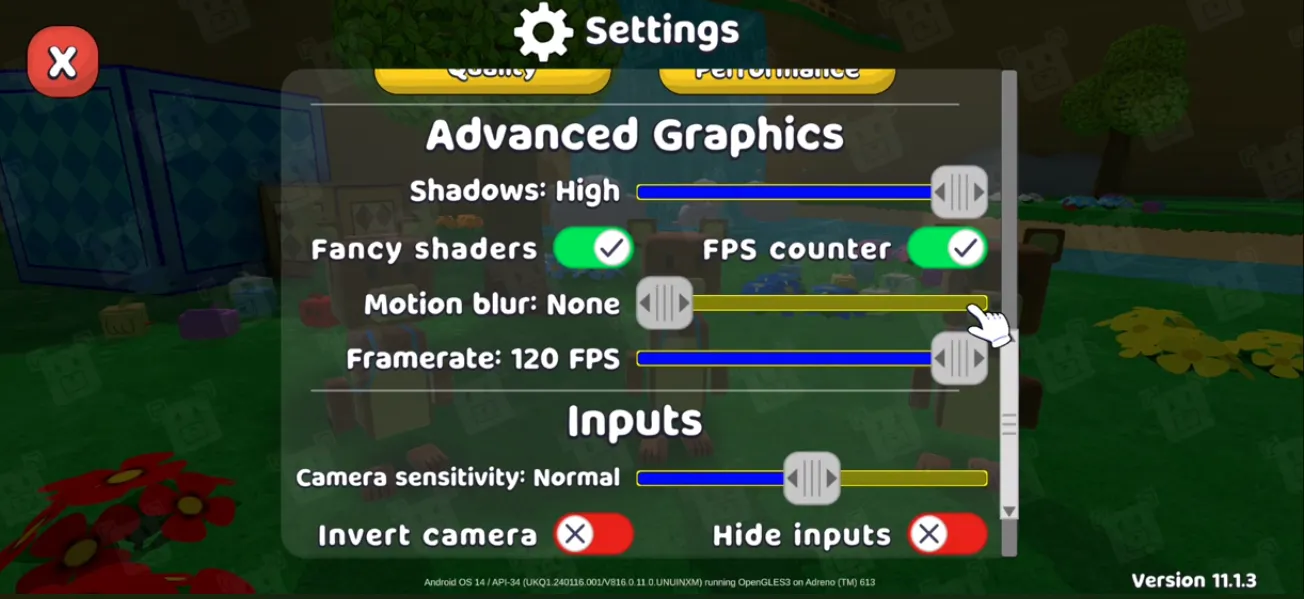
The fastest way to smooth the game is the in-game settings menu:
- Resolution: Medium. “High” on 2 GB phones is the #1 crash cause.
- Shadows: Off. Real-time shadows are heavy.
- Motion Blur: Off. Looks soft and costs performance.
- Anti-Aliasing: Off. Slightly softer edges for a big smoothness gain.
- Frame Rate Limit: 60. If your phone gets too hot, lock it at 30.
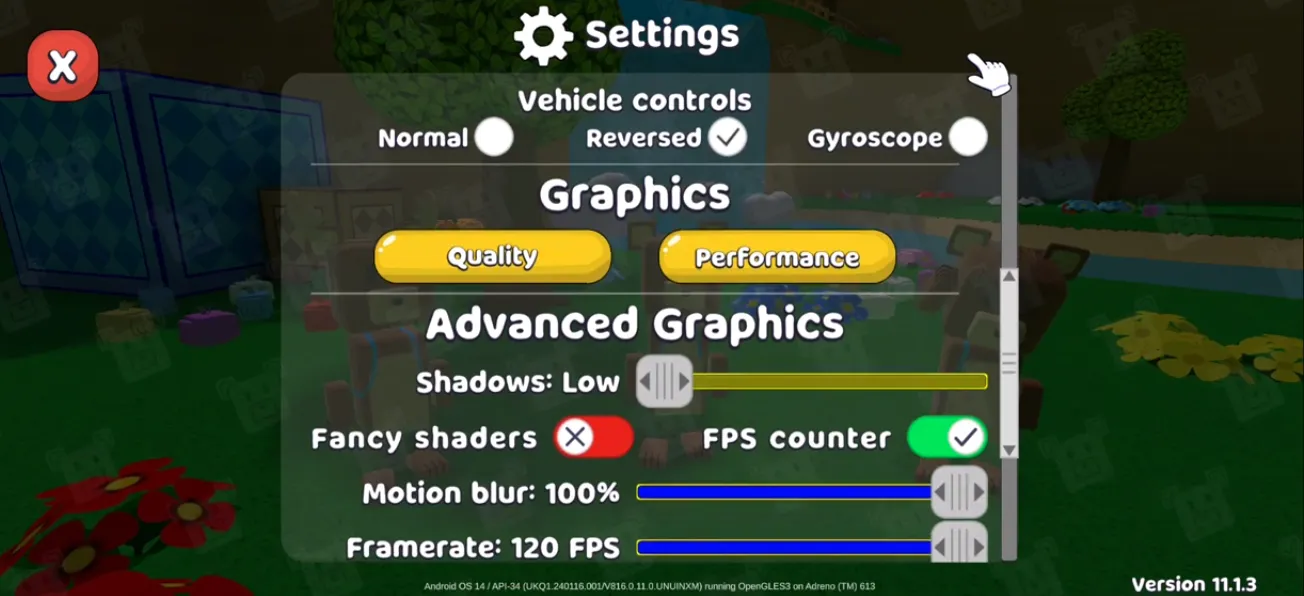
Pro settings for Super Bear Adventure (smooth and responsive)
Treat these as pro settings for Super Bear Adventure—the mix skilled players use for bosses and medal runs:
- In-game: Resolution Medium (or Low on very weak devices), Shadows Off, Motion Blur Off, Anti-Aliasing Off, frame rate 60 (or 30 if hot).
- System: Enable Game Mode for Super Bear Adventure, close other apps, and avoid playing while charging and overheating. On PC emulators, give the game 4 cores and 4 GB memory and use a Performance graphics mode.
There’s no single “pro settings” menu in the game—it’s this mix. For Hive freezes or overheating, use the quick-fix table below and our common errors guide.
What phone-level tricks help?
1. Enable High Performance / Game Mode
Most phones from Xiaomi, Realme, and Samsung have a Game Booster. Add Super Bear Adventure and set Performance Mode on.
2. Clear background apps
Before launching, clear apps from your recent tray so memory is free for the game.
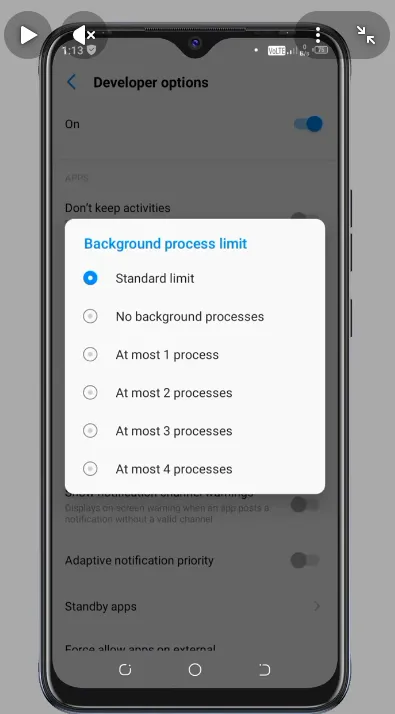
3. Optional developer tweaks
Go to Settings > About Phone and tap “Build Number” 7 times to unlock Developer Options.
- Turn Force 4x MSAA OFF.
- Set Background Process Limit to “At most 2 processes”.
How do I fix lag on PC or Android emulators?
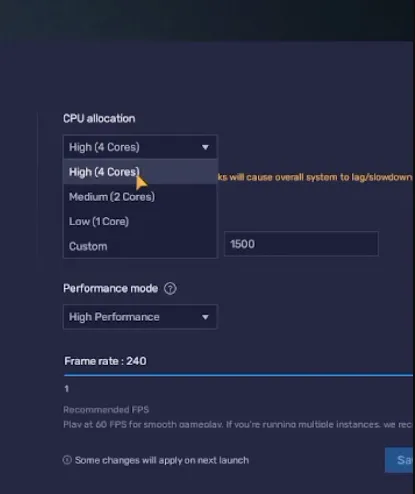
If you play on BlueStacks or LDPlayer:
- CPU: 4 cores
- Memory: 4 GB
- Graphics mode: Performance (Legacy)
- Prefer your dedicated graphics card if the PC has one
For a complete setup, see our Download Super Bear Adventure for PC walkthrough.
What common lag issues exist and how do I fix them quickly?
| Issue | Cause | Fix |
|---|---|---|
| Game Freezing in The Hive | High density of honey assets | Lower your resolution temporarily until you clear the area |
| Phone Overheating | Thermal throttling after 15+ minutes | Take a 5-minute break or play under a fan to keep the CPU cool |
| Input Lag (Delayed Jumps) | CPU at 100% usage | Close background music apps; this usually fixes it instantly |
Final Verdict
Optimization is about balance. By turning off shadows and managing your background tasks, you can turn a laggy mess into a smooth platforming journey. If these steps still don’t work, your device might be below the hardware threshold—check our Best Games Like Super Bear Adventure for lighter alternatives.
Frequently Asked Questions (FAQ)
- High resolution, real-time shadows, motion blur, and edge smoothing make the phone work harder. Set Resolution to Medium, Shadows to Off, and turn Motion Blur and Anti-Aliasing off for smoother play.
- Your phone is getting too hot and throttling speed to cool down. Take a short break or play under a fan. Cap the frame rate at 30 if needed.
- Close background apps before launching the game. Turn on Game Mode / High Performance if your phone has it.
- Yes, but set Resolution to Medium, Shadows to Off, and close other apps. If it still stutters, try a lighter build from our old versions archive.
What causes lag in Super Bear Adventure on low-end phones?
Why does my phone overheat and slow down after 15 minutes?
How do I fix delayed jumps?
Can I play on 2GB memory devices?
Best In-Game Settings for No Lag
- Resolution Medium
- Shadows Off
- Motion Blur Off
- Anti-Aliasing Disabled
- Frame Rate 60 FPS
About MDA
MDA is a gaming specialist who has spent hundreds of hours 100% completing every Super Bear Adventure world, testing each Mod APK update on low-end Android phones, modern flagships, and PC emulators to make sure every route and fix actually works.